Summary: This case study demonstrates how Audio Support quickly resolved a baffling issue for a musician using Logic Pro 11, where audio would mysteriously vanish or behave erratically. The problem was traced to a misunderstanding of how the VocAlign plugin processes and plays back audio, leading to a disconnect between what was seen on the timeline and what was heard. A best-practice workflow was established to ensure consistent and predictable results.
Client’s Initial Request
A client, a musician familiar with Logic Pro X and 11, reached out facing significant frustration. Their inquiry described erratic and inexplicable audio behaviour:
“I am using Logic Pro 11 and having problems with the software behaving strangely. I am fairly confident with Logic, am a musician, have used it (Pro X then 11) for 3 years, but I’m not great at understanding the ‘under the hood’ settings, when it comes to troubleshooting. My current stress is that it is randomly losing chunks of my mix in different ways. E.g., I’m automating volume (to remove vocal breaths) and suddenly chunks of waveform will vanish, though the audio remains. Bouncing or resaving audio doesn’t fix this. I had a whole section at the start of a vocal region disappear, yet the blank space left there, before the region started, still had audio. I’ve had audio be silent when Solo, then can be heard with not Solo. All online suggestions seem to suggest complex issues within settings. I’ve tried starting a fresh project and importing the audio to start again, but found the same issues randomly happen. I’d love an expert to look at my settings, maybe help me start ‘box fresh’ and build a template with me, with all the settings appropriate, including an expert eye on my chosen plug-ins.”
The core problem was a confusing discrepancy between the visual waveform in Logic’s timeline and the actual audio playback, leading to unpredictable editing challenges.
Arranging a Remote Support Session & Rapid Diagnosis
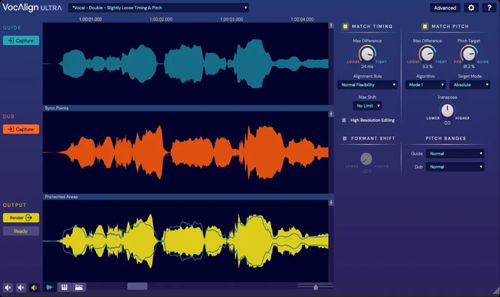
A remote support session was quickly arranged. As the client showed me around their Logic Pro project, I immediately identified a potential “red flag”: the VocAlign audio unit plugin was active on most of their vocal tracks. While the client intended to use VocAlign to micro-time align their main vocals with overdubs – a task the software excels at – they weren’t aware of its specific operational behavior.
Identifying the Problem: The VocAlign Audio Overlay
The key to understanding the client’s frustration lay in how VocAlign handles audio. Unlike many other plugins that simply process audio in place, VocAlign typically requires you to “transfer” or “capture” audio from the DAW into the plugin itself. Once transferred and processed, the plugin then takes over playback of that audio track. This means:
- What you see on Logic’s timeline (the original, unedited audio region and waveform) no longer accurately reflects what you hear.
- The actual playback is controlled by the processed audio within the VocAlign plugin, which is often hidden when the plugin’s graphical user interface (GUI) window is closed.
This fundamental characteristic of VocAlign was causing the client’s “vanishing waveform” issues, the silent-when-soloed problem, and the general confusion when applying further edits or automation. Logic was still displaying the original, but VocAlign was playing back its own version.
The Solution: Understanding Plugin Behaviour & Establishing a Best-Practice Workflow
- Confirmation of Issue: By simply bypassing VocAlign on one of the problematic tracks, I immediately demonstrated that the audio returned to its unedited version, precisely matching what was displayed on Logic’s timeline. This quickly confirmed the root cause.
- Clear Explanation: I then thoroughly explained how VocAlign effectively overlays itself, taking over the audio regions on a track once audio is transferred into it. This clarifies why their attempts to edit or automate within Logic’s timeline weren’t yielding the expected results.
- Best-Practice Workflow Implementation: To prevent future issues and ensure predictable results, I guided the client through a robust workflow for using VocAlign:
- Record vocals in Logic’s timeline as usual.
- Apply the VocAlign plugin to the track.
- Transfer the audio into VocAlign, apply the desired processing (e.g., aligning with an overdub track).
- Crucially, use Logic’s “Bounce In Place” function to render the treated audio back into a new audio region directly on Logic’s timeline.
- Remove or bypass VocAlign from the track.
- Now, any further plugins (compression, EQ, reverb) or edits (removing sections, moving regions) can be applied, and what the client sees on Logic’s timeline will accurately reflect what they hear.
Concluding the Remote Support Session
This relatively straightforward problem, though highly frustrating for the client due to its mysterious nature, was swiftly resolved. The client left the session with a clear understanding of how VocAlign works, a reliable workflow for using it, and the confidence to manage their vocal production going forward.
Client’s Experience & Public Review
The client’s relief and satisfaction were evident, as expressed in a fantastic public review they left:
“Really friendly and helpful. Quickly identified a ‘red flag’ in my set up that was causing my problems, and took the time to look around at my settings, explain why things worked in certain ways, and followed a step by step re-import of some audio to check for problems. Ended up smoothing a whole bunch of wrinkles for me!”
Key Takeaways:
- The Problem: Randomly disappearing waveforms, silent-when-soloed audio, and general unpredictable behavior in Logic Pro 11, specifically when editing vocal tracks.
- The Diagnosis: A misunderstanding of how the VocAlign audio unit plugin takes over audio playback, causing a visual/auditory mismatch in the DAW.
- The Solution: Clear explanation of VocAlign’s “overlay” behavior, followed by establishing a “Bounce In Place” workflow to render treated audio back into Logic’s timeline for consistent editing and further processing.
Expert Insight
Many advanced plugins can interact with a Digital Audio Workstation (DAW) in ways that aren’t immediately obvious, especially if they handle audio “off-timeline” or use specific transfer methods. What might seem like a complex, random software bug is often a predictable outcome of misunderstood plugin behavior. A methodical diagnostic approach, combined with clear explanations and the establishment of efficient workflows, empowers users to avoid these frustrations and fully harness their tools.
Get support for similar problems
Are you experiencing mysterious audio issues in Logic Pro or another DAW? Do you need help understanding complex plugin interactions or optimizing your music production workflow?
Recent Reviews
Let’s Get Your System Running Smoothly.
No automated tickets, no waiting queues — just one-to-one help from an experienced music technology specialist. I’ll connect to your system remotely, identify the issue, and guide you through the fix.