Client’s Request
After successfully troubleshooting a Logic Pro crash and gaining a better understanding of his Universal Audio Apollo Console, the same client faced another critical hurdle in his music production workflow: he couldn’t hear any audio coming from his Pro Tools session through his Apollo Twin interface. This fundamental issue was preventing him from working on his music.
Arranging a Remote Support Session & Comprehensive Support
This Pro Tools audio routing issue was the third and final problem addressed within the same highly productive 60-minute remote support session. This comprehensive approach allowed the client to resolve multiple complex technical challenges and gain a deeper understanding of his entire studio setup in a single, efficient hour.
Identifying the Problem: Misconfigured Pro Tools I/O Setup
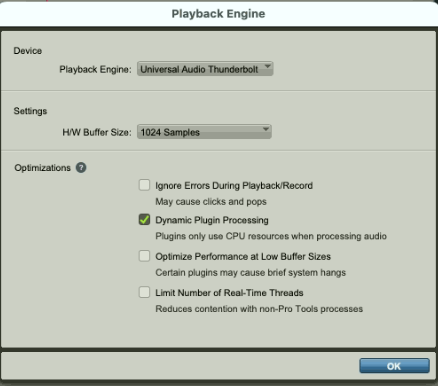
Upon connecting to the client’s system, I opened Pro Tools and asked him to load his session. The first step was to confirm the Playback Engine was correctly set to “Universal Audio Thunderbolt,” ensuring Pro Tools was communicating with his Apollo Twin.
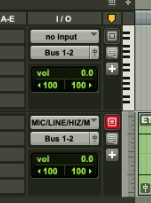
The core problem quickly became apparent: his Pro Tools tracks were assigned to “Bus 1-2” as their output. While buses are powerful internal routing tools, in this instance, “Bus 1-2” was not mapped to any physical output in the Pro Tools I/O Setup Matrix. This meant the audio was being routed internally within Pro Tools but had nowhere to go to reach the Apollo Twin and, ultimately, his headphones.
The Solution: Correcting Output Assignments & Explaining Buses
I guided the client through the following steps to resolve the issue and deepen his understanding
- Accessing I/O Setup: We navigated to the Pro Tools top menu and opened the I/O Setup window.
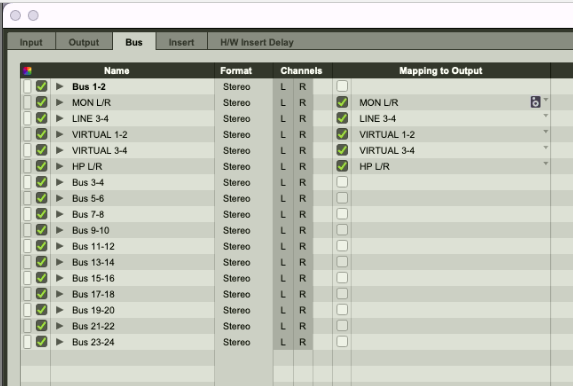
- Diagnosing the Bus Tab: While the input and output tabs were correctly configured, the Bus tab confirmed that “Bus 1-2” was indeed unmapped.
- Two Solution Paths: I presented two options: either map “Bus 1-2” to a physical Apollo output, or, more simply, reassign the tracks directly to the “Monitor L/R” output. I recommended the latter, explaining that “Monitor L/R” is the default output Pro Tools and the Apollo Console expect for main monitoring, making future sessions easier to manage.
- Demystifying Buses: The client then asked a crucial question: “What’s the point of buses?” I explained that buses are internal digital audio routing options within Pro Tools. I provided practical examples of their utility, such as creating sends for effects (like delays and reverbs across multiple tracks), grouping tracks into sub-mixes (e.g., an entire drum kit), or enabling advanced mixing techniques like parallel compression. I clarified that while these are powerful features for mixing and production, for his current stage, simply getting audio out was the priority.
- Implementing the Fix: We returned to the main Pro Tools window, and the client changed the output selector for his two tracks to “Monitor L/R.”
Concluding the Remote Support Session
The moment he changed the output, audio immediately began playing through his Apollo Twin and headphones. The client was not only pleased that Pro Tools was now working correctly but also expressed a clear understanding of the I/O Setup Matrix and the potential future applications of buses as he grows his knowledge and confidence in Pro Tools.
Client’s Experience
The client was thrilled to have his Pro Tools session finally producing sound. He greatly appreciated the clear explanation of what buses are and how the I/O setup works, transforming a frustrating “no audio” problem into a valuable learning experience.
Key Takeaways
- The Problem: No audio output from Pro Tools due to tracks being routed to an unmapped internal bus.
- The Diagnosis: Pro Tools tracks were assigned to “Bus 1-2,” which was not linked to a physical output in the I/O Setup’s Bus tab.
- The Solution: Reassigning track outputs to “Monitor L/R” and providing a clear explanation of Pro Tools’ I/O Setup and the purpose of buses for future understanding.
Expert Insight
The Pro Tools I/O Setup can be a source of significant frustration for users when audio isn’t heard. Understanding the difference between physical outputs and internal buses is fundamental to effective routing. Our remote support sessions not only fix immediate problems but also empower clients with the knowledge to confidently navigate their DAW’s complex features, building a stronger foundation for their music production journey.
Other Issues Resolved in This Session
Get support for similar problems
Are you struggling with audio routing, I/O setup, or “no sound” issues in Pro Tools or other DAWs? Do complex software menus leave you feeling lost?
Let’s Get Your System Running Smoothly.
No automated tickets, no waiting queues — just one-to-one help from an experienced music technology specialist. I’ll connect to your system remotely, identify the issue, and guide you through the fix.