
Focusrite Scarlett Setup: A Fix for Connection Issues
The Client’s Challenge
A client recently found himself in a particularly frustrating situation. His new Focusrite Scarlett 2i2 Anniversary Edition—the distinctive blue model—was refusing to connect to his Windows laptop. The baffling part? The power indicator on the front of the interface was clearly lit, confirming it was receiving electricity. Yet, his PC remained stubbornly unaware of its existence. He’d plugged it in, the lights were on, but the crucial digital handshake between the interface and his operating system simply wasn’t happening. For any creator, this is a maddening roadblock: the gear seems to be working, but the system is blind to it, stopping the session dead in its tracks.
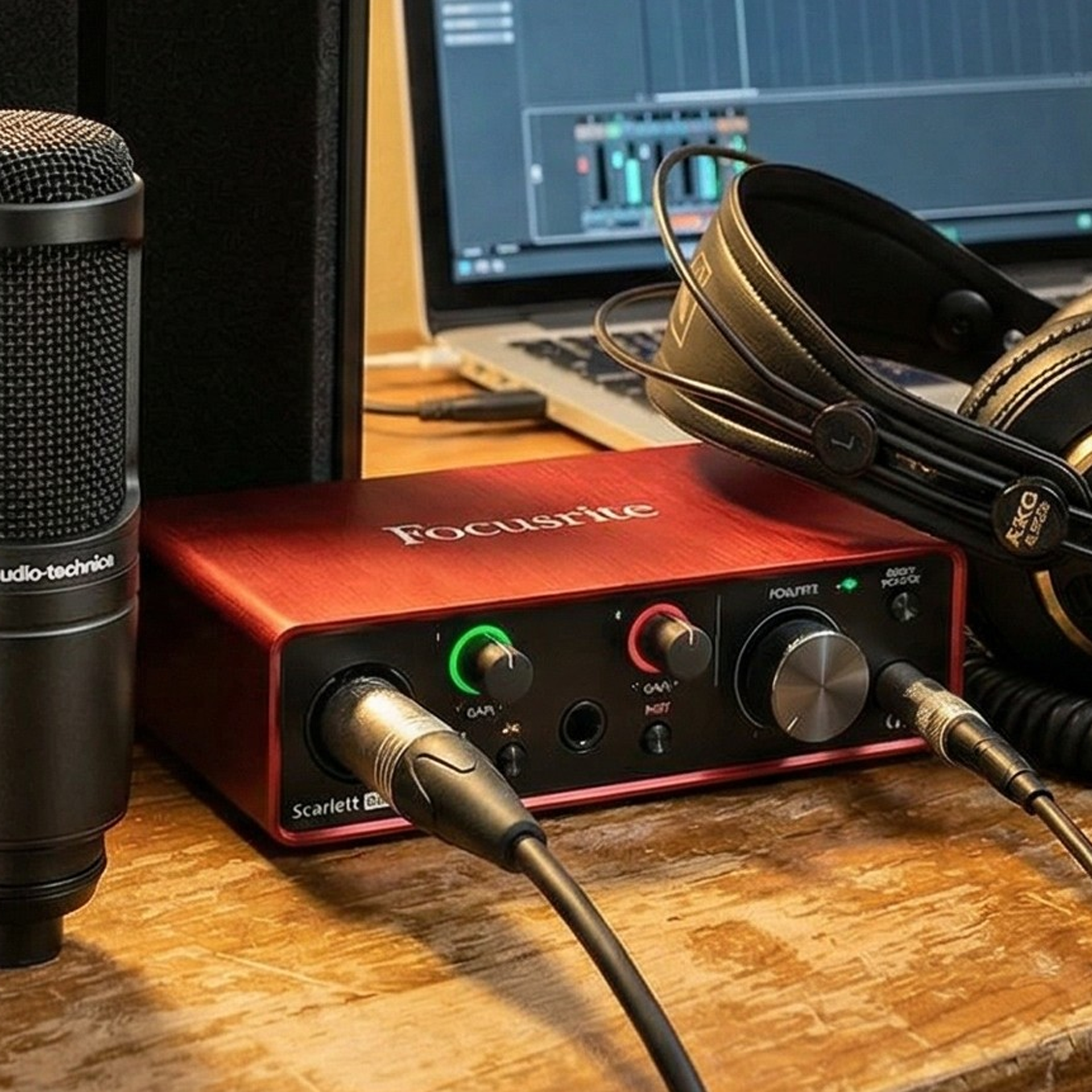
Studio desk setup showing the Focusrite 2i2.
Diagnosis: The Case of the Two Ports
My first line of enquiry is always to rule out software. We confirmed the Focusrite drivers were installed and that no other software was conflicting, but the device was completely absent from the Windows Device Manager. This told me the problem was almost certainly physical. The client assured me the cable was connected, but my suspicion turned to the interface itself.
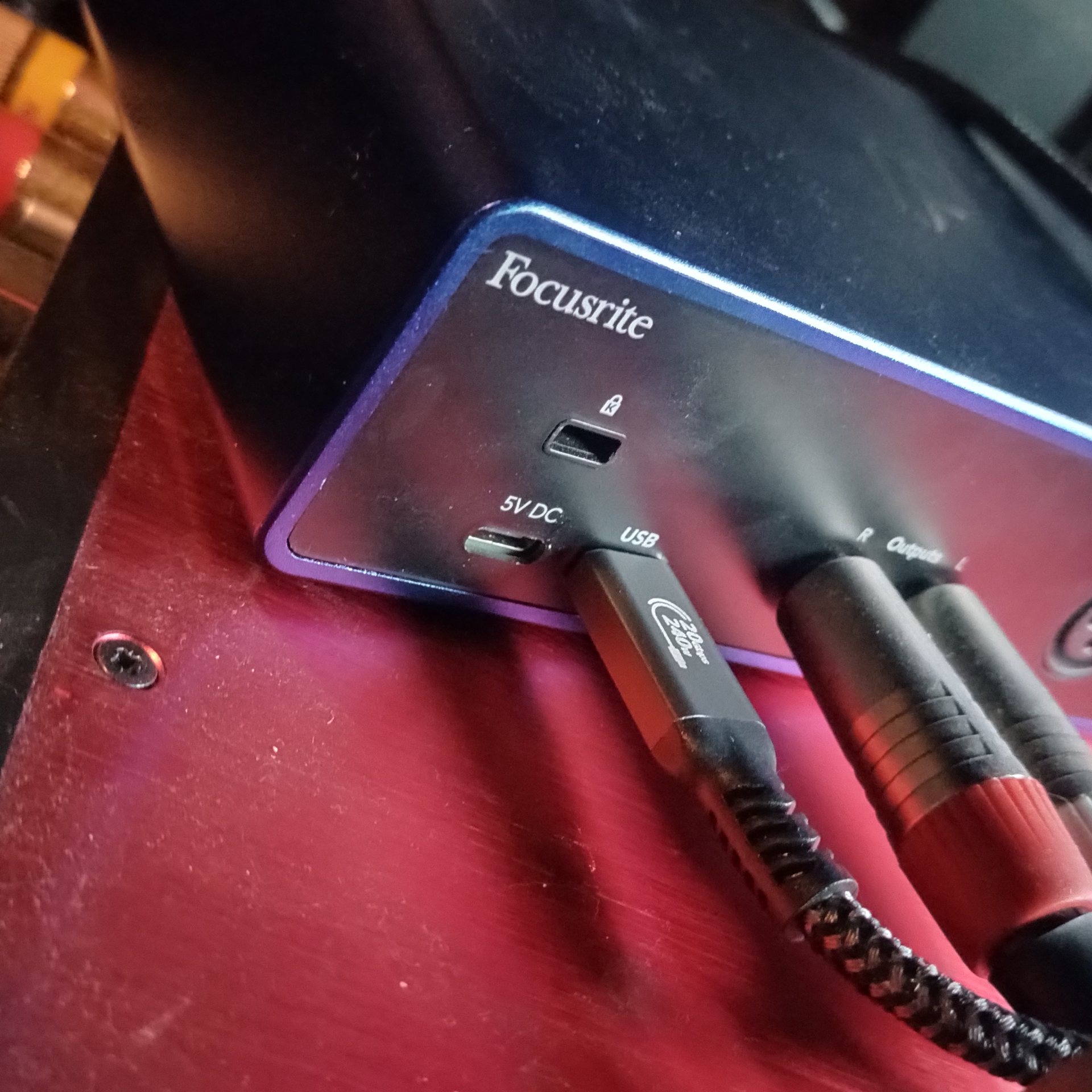
A quick search for the manual of this specific Anniversary Edition model revealed the culprit. Unlike older models, this unit features two physically identical USB-C ports on the back. This is a classic case of what I call ‘UI Ambiguity’—where a design choice creates a potential trap for the user.
Understanding the Dual USB-C Ports
Port 1 (Data & Power): This port is marked with the standard universal USB symbol. It’s the main highway, designed to carry both the electrical power to run the interface and the digital audio data to and from your computer.
Port 2 (5V DC Power Only): This port is purely for supplementary power. Think of it as a booster pack. It’s there for edge cases, like connecting the interface to an iPad or phone that can’t provide enough juice through its own USB port. When you plug your computer’s data cable into this port, the interface powers up, but no data can flow. The lights are on, but nobody’s home.
The client, working in a dimly lit studio and reaching around the back of his desk, had inadvertently plugged the cable into the 5V DC power-only port. It’s an incredibly easy mistake to make, and one that provides the most confusing of symptoms: the appearance of a functioning device that is, for all intents and purposes, completely silent.
Studio desk setup showing the Focusrite 2i2.
The Fix: The Digital Handshake
The resolution was, thankfully, immediate. By guiding the client to the correct port, the connection was established instantly. Here is the exact procedure to follow if you find yourself in the same situation.
Safely disconnect the USB-C cable from the back of your Focusrite interface.
Carefully examine the rear panel. Identify the USB-C port that is labelled with the traditional USB ‘trident’ symbol, not the one labelled ‘5V DC’.
Plug the USB-C cable coming from your computer securely into this correct data port.
Windows should immediately issue the familiar ‘device connected’ sound, and the Focusrite Scarlett 2i2 will now appear in your audio settings, ready for use.
Studio desk setup showing the Focusrite 2i2.
A Final Thought: Labelling is Liberation
This case highlights a growing trend in modern hardware design. In the quest for flexibility and a sleek aesthetic, manufacturers sometimes create these small, confusing ambiguities. For the user, especially in the creative chaos of a studio, it’s a recipe for frustration. USB-C cables, in particular, don’t always have the firmest ‘click’ when seated, making it easy to mis-plug a loose cable into an adjacent, identical-feeling port.
Never feel foolish for being caught out by something like this. The fault lies not with you, but with a design that requires a manual to understand which identical port to use. A simple tip for the future: if you have a device with multiple similar-looking ports, take a moment when you first set it up to add a small, tactile label—a dab of nail polish, a tiny sticker, or a coloured cable tie—to mark the correct ‘data’ connection. In the dark, behind a desk, your future self will thank you.
If you are seeking professional help with a Focusrite Scarlett setup issue, particularly where the device powers on but is not detected by Windows, one-on-one remote support services are available from Audio Support.
