
Having trouble getting your MIDI keyboard to work with Cubase 14? This case study details how Audio Support resolved an issue where a Launchkey Mini MK3 wasn’t sending MIDI input to Cubase. The solution involved activating the ‘All MIDI Inputs’ setting for the device in Cubase’s MIDI Port Setup
A Remote Support Case Study by Paul Andrews of Audio Support.
Audio Support is a company that connects with clients with music technology experts to resolve issues with their studio setups. As part of a recent remote support session, Paul Andrews helped a client work out why his MIDI keyboard wasn’t working in Cubase 14.
The Client’s Problem: MIDI Input Not Detected in Cubase 14
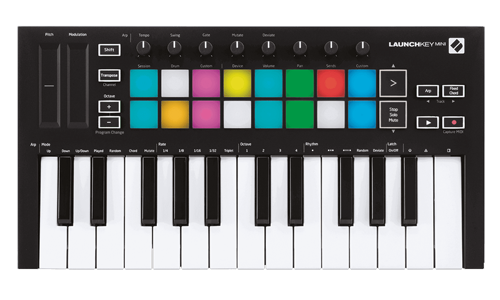
My client was using a Launchkey Mini MK3 MIDI controller keyboard. When he pressed the keys, we couldn’t see anything displayed in Cubase’s MIDI Input monitor.
Initial Troubleshooting Steps
Checking Physical Connections and Keyboard Power
Starting with some basic troubleshooting steps, I asked my client to check the cable and what he could see on the keyboard. He told me that the lights were illuminated on the keyboard. This told us that the cable was correctly connected and that USB power was coming from the PC.
Restarting Cubase and Reconnecting the Keyboard
I asked my client to go through the following steps:
- Close Cubase
- Disconnect the USB cable from the Launchkey
- Wait a few seconds
- Reconnect the cable
- Re-open Cubase
No difference. MIDI still not being displayed.
The Solution: Activating ‘All MIDI Inputs’ in Cubase’s MIDI Port Setup
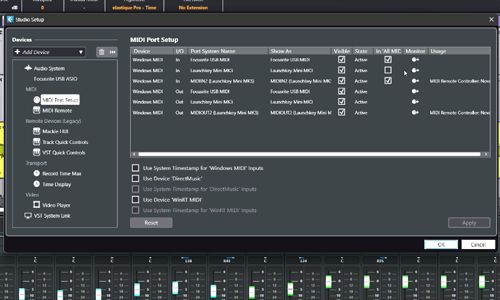
Navigating to Studio Setup > MIDI Port Setup
I asked my client to open Settings – Studio Setup – MIDI Port Setup.
Identifying the MIDI Keyboard (Launchkey Mini MK3)
Ensuring the ‘All MIDI Inputs’ Box is Checked and Saving the Settings
We had found the problem. The Launchkey was not active because the All MIDI Inputs box was unchecked for that MIDI device. I told my client to check the box and save the settings.
We went back to Cubase’s main window and tested the keyboard again. This time the VST instrument started playing back notes when keys were pressed. Problem solved.
Key Takeaways:
- This case highlights the importance of checking DAW-specific MIDI input settings when troubleshooting connectivity issues.
- A client’s Novation Launchkey Mini MK3 MIDI keyboard was not sending any MIDI input to Cubase 14.
- Basic checks of cables and keyboard power confirmed the hardware was functioning correctly.
- The issue was located within Cubase’s MIDI settings.
- The solution involved navigating to Studio Setup > MIDI Port Setup and ensuring the ‘All MIDI Inputs’ box was checked for the Launchkey Mini MK3.
If you have any similar problems with Cubase and would like to book remote support from a music technology expert, please make a booking or get in touch.
Recent Reviews
Let’s Get Your System Running Smoothly.
No automated tickets, no waiting queues — just one-to-one help from an experienced music technology specialist. I’ll connect to your system remotely, identify the issue, and guide you through the fix.
