Category: Logic audio interfaces

  • Mono Microphone Only in Left Speaker Fix in Logic Pro

    Mono Microphone Only in Left Speaker Fix in Logic Pro

    A composer reached out to me, deeply stressed about an important recording session he had scheduled with a long-time guitar collaborator. His setup included a microphone plugged into his audio interface, but the sound was only coming out of the left speaker. He was worried that his expensive new gear was faulty just before a critical professional date.

    He had already spent time looking at the Focusrite control software, following advice he had received, trying to find a “software monitoring” section that wasn’t immediately obvious. Despite his efforts, the microphone signal remained stuck to the left side of his stereo field, causing significant anxiety and wasting creative time. He needed a fast, authoritative fix.

    The client was right to suspect the monitoring chain was the issue, but the fault wasn’t located in the audio interface’s control panel as he initially thought.

    The microphone was correctly plugged into a single input on his interface, which sends a mono signal. The problem lay in Logic Pro itself: when he created the new audio track for his vocal recording, he had accidentally chosen the Stereo format instead of Mono.

    When Logic Pro receives a mono signal on a track configured for stereo, it correctly routes the single input to the corresponding channel—typically the left. Since there was no signal plugged into the second input (the right channel), the stereo track was functioning as expected, but was resulting in the unwanted single-channel playback.

    The solution was straightforward once the cause was identified. I demonstrated how to access the “Create New Track” menu in Logic Pro. Within this dialogue box, there is a crucial option to select either a Mono or Stereo track format.

    The client was simply instructed to delete the incorrectly configured stereo track and create a new one, ensuring the Mono option was selected. This immediately placed the microphone signal correctly in the centre of the stereo field, as the DAW was now treating the single input as a centre-panned mono source.

    I also took the time to explain why this had happened, showing him the difference between mono and stereo tracks in the DAW environment and how to check this setting quickly in the future. This educational approach is central to the service I provide.

    The client was visibly relieved. His recording setup was not, in fact, broken; it was simply a small, easily missed setting within the DAW’s track creation menu. The problem was fixed in minutes, restoring full functionality to his microphone and allowing him to proceed with confidence for his important session.

    He was able to go from stressed and anxious about faulty gear to feeling competent and prepared, all before his collaborator arrived.

    This case highlights a key difference between holistic Audio Support and manufacturer helpdesks. The manufacturer’s team might have focused narrowly on the Focusrite software, but the real issue was upstream, in the user’s workflow within the DAW.

    Troubleshooting complex audio systems requires looking at the full signal chain: the hardware, the operating system, the DAW, and the user’s individual workflow. Simple settings in Logic Pro or Pro Tools are easy to overlook, but they can bring an entire professional session to a halt. The greatest value I provide is the independent, systematic diagnosis that cuts through the noise and finds the real cause, transforming frustration into creative flow.

    I help musicians and producers worldwide solve problems like this every day. From minor setup errors to complex system conflicts, I look beyond one product to diagnose your entire creative system. If you’re struggling with Logic Pro or your audio interface setup, I’ll help you find the real cause and get you back to creating.

    No automated tickets, no waiting queues — just one-to-one help from an experienced music technology specialist. I’ll connect to your system remotely, identify the issue, and guide you through the fix.

    Recent problems solved for real clients.

    Optimising Logic Pro CPU Usage for Large Orchestral Mixes

    Client’s Question

    Why does Logic Pro keep crashing when I add plugins to my tracks?

    Session Result

    CPU load drastically reduced; mix workflow stabilised via bus routing.

    Read Full Case Study Report: Mono Microphone Only in Left Speaker Fix in Logic Pro
    Preparing for a Studio Hardware Installation

    Client’s Question

    What cables do I need to connect my hardware synths to my mixer?

    Session Result

    Equipment audited, cable inventory confirmed, site visit planned.

    Read Full Case Study Report: Mono Microphone Only in Left Speaker Fix in Logic Pro
    Mono Microphone Only in Left Speaker Fix in Logic Pro

    Client’s Question

    Why is my mono mic input only coming out of the left speaker in Logic Pro?

    Session Result

    Mono input successfully centred by changing Logic Pro track format from Stereo to Mono.

    Read Full Case Study Report: Mono Microphone Only in Left Speaker Fix in Logic Pro
    Managing Native Instruments Komplete Libraries in Kontakt

    Client’s Question

    How do I hide unwanted libraries in the Kontakt side pane?

    Session Result

    Unused libraries hidden, visual clutter removed.

    Read Full Case Study Report: Mono Microphone Only in Left Speaker Fix in Logic Pro


  • No Sound in Logic Pro from Apollo Twin? Check the UAD Console I/O Matrix

    No Sound in Logic Pro from Apollo Twin? Check the UAD Console I/O Matrix

    The Client’s Request:

    Even after his UAD Apollo Twin was recognized by his Mac, my client Lawrence, a professional composer, was still unable to get any sound from his microphone or guitar to appear in Logic Pro. He could see input activity on the UAD Console, but the signal just wasn’t making it into his recording software. This was the final hurdle preventing him from capturing his performances.

    How I Dealt With the Session:

    Having resolved the initial driver recognition issue, we moved on to getting the audio signal from the Apollo Twin’s inputs into Logic Pro. With Logic open and the Apollo selected as the audio device, we still observed no input. This immediately directed our attention to the UAD Console software itself. While input metering was visible within the Console, indicating sound was reaching the interface, it wasn’t being correctly routed out to Logic. Through a systematic check of the Console’s settings, I quickly identified that the I/O Matrix, a critical routing hub, was blank. It became clear that some previous troubleshooting attempts by the client had inadvertently cleared these essential routing pathways. Selecting the default settings here quickly resolved the issue.

    Troubleshooting Steps: Getting Apollo Twin Audio Inputs into Logic Pro

    If your UAD Apollo Twin or other Universal Audio interface is recognized, but no audio signal is appearing in your Digital Audio Workstation (DAW) like Logic Pro, check these settings:

    • Verify DAW Audio Settings:
      1. Open your DAW (e.g., Logic Pro).
      2. Go to the DAW’s Audio Settings or Preferences (e.g., Logic Pro > Settings/Preferences > Audio).
      3. Under the Devices tab, confirm that your Apollo Twin (or Universal Audio device) is selected as both the Input Device and Output Device.
    • Check UAD Console I/O Matrix (Crucial Step):
      1. Open the UAD Console application.
      2. Within the Console, look for Settings (often represented by a gear icon or found in a menu).
      3. Select I/O Matrix.
      4. The I/O Matrix displays how the physical inputs and outputs of your Apollo Twin are routed to the software. If this matrix appears blank or incorrect, this is often the cause of no signal reaching your DAW.
      5. To fix this, look for a “Default” or “Reset” preset option within the I/O Matrix settings and select it. This will restore the standard routing configuration.
    • Test Audio Input in Your DAW:
      1. In your DAW, create a new Audio Track.
      2. Select the input corresponding to where your microphone or instrument is connected on the Apollo Twin (e.g., Analog 1, Analog 2).
      3. Enable recording on the track and send a signal (e.g., play guitar, speak into mic). A signal should now appear on the DAW’s input meters, confirming successful routing.

    Client’s Satisfaction:

    Lawrence was incredibly pleased to see his mic and guitar finally working in Logic Pro. This immediate resolution to his main technical problem was a huge relief, enabling him to resume recording. He later provided a five-star review, emphasizing his satisfaction with the comprehensive support received.

  • The UAD Apollo Twin is Not Showing Up: Allowing macOS System Extensions

    The UAD Apollo Twin is Not Showing Up: Allowing macOS System Extensions

    Summary

    A composer reaches out to Audio Support for help. He had set up his UAD Apollo Twin audio interface with his Mac, and while the hardware lights were on, he couldn’t get it to appear in his UAD software or receive any sound in Logic Pro. Paul from Audio Support explains how he diagnosed the problem and details the solution.

    The Client’s Request

    A professional composer, Lawrence, contacted me in frustration. He had just set up his UAD Apollo Twin audio interface with his Mac, and while the hardware lights were on, he couldn’t get it to appear in his UAD software or receive any sound in Logic Pro. This meant he couldn’t record his guitar or microphone, halting his creative work.

    Hi there. I am having an issue with my UAD ApolloTwin sound card. I’m not able to see an input signal in the Console, also output seems to be intermittent. Is this something you might be able to help me with? Thanks Laurence.

    Diagnosing the Problem

    After Lawrence booked an online session, we connected remotely via AnyDesk so I could see his screen. It was clear the Apollo Twin wasn’t being properly recognized by the UAD software, even though the Mac’s system report showed it was connected. This often points to a software or driver issue rather than a hardware fault. My experience indicated that macOS security settings are a common culprit for new driver installations. A quick check of Universal Audio’s support articles confirmed this suspicion. I guided Lawrence through the necessary steps to allow the UAD system extension, which is a frequent cause of these recognition problems.

    Troubleshooting Steps

    Getting Your UAD Apollo Twin Recognized

    If your UAD Apollo Twin or other Universal Audio device isn’t being recognized by its software (e.g., UAD Console, UAD Meter & Control Panel) despite appearing connected to your Mac, follow these steps:

    Checking Mac’s System Settings for Driver Permissions:

    1. Click the Apple logo in the top-left corner of the screen.
    2. Select System Settings (or System Preferences for older macOS versions).
    3. Navigate to Privacy & Security.
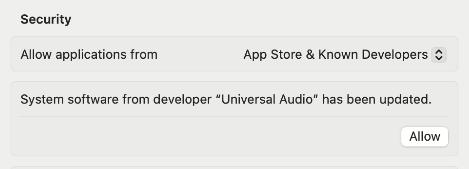
    4. Scroll down the window. Look for a message indicating that “System software from developer ‘Universal Audio’ has been updated.” This message often appears if a driver has been installed but not yet granted full permission.
    5. If present, click the “Allow” button next to this message.

    Restarting Your Mac

    After clicking “Allow,” macOS will typically prompt for a restart. It is crucial to restart the computer for the driver changes to take full effect.

    Verifying UAD Software Recognition

    • Once the Mac has restarted, open the UAD Console application.
    • Also open the UAD Meter & Control Panel.
    • The UAD software should now load correctly and display the Apollo Twin as connected and active, with metering and controls accessible.

    Client’s Satisfaction

    At the end of our session, Lawrence was pleased. His immediate technical problem was resolved, and he felt much more confident about his system’s status. He later left a five-star review, highlighting the clarity and effectiveness of the support provided.

    “Helpful, diligent and friendly!” – 5 Stars

    No automated tickets, no waiting queues — just one-to-one help from an experienced music technology specialist. I’ll connect to your system remotely, identify the issue, and guide you through the fix.

    Recent problems solved for real clients.

    Optimising Logic Pro CPU Usage for Large Orchestral Mixes

    Client’s Question

    Why does Logic Pro keep crashing when I add plugins to my tracks?

    Session Result

    CPU load drastically reduced; mix workflow stabilised via bus routing.

    Read Full Case Study Report: The UAD Apollo Twin is Not Showing Up: Allowing macOS System Extensions
    Preparing for a Studio Hardware Installation

    Client’s Question

    What cables do I need to connect my hardware synths to my mixer?

    Session Result

    Equipment audited, cable inventory confirmed, site visit planned.

    Read Full Case Study Report: The UAD Apollo Twin is Not Showing Up: Allowing macOS System Extensions
    Mono Microphone Only in Left Speaker Fix in Logic Pro

    Client’s Question

    Why is my mono mic input only coming out of the left speaker in Logic Pro?

    Session Result

    Mono input successfully centred by changing Logic Pro track format from Stereo to Mono.

    Read Full Case Study Report: The UAD Apollo Twin is Not Showing Up: Allowing macOS System Extensions
    Managing Native Instruments Komplete Libraries in Kontakt

    Client’s Question

    How do I hide unwanted libraries in the Kontakt side pane?

    Session Result

    Unused libraries hidden, visual clutter removed.

    Read Full Case Study Report: The UAD Apollo Twin is Not Showing Up: Allowing macOS System Extensions
  • PreSonus Audio Interface Not Connecting to Logic Pro: How to Fix Blocked Drivers in macOS Security

    PreSonus Audio Interface Not Connecting to Logic Pro: How to Fix Blocked Drivers in macOS Security

    Hi Paul. I tried to update the PreSonus Universal Control software to the latest version from my account on the PreSonus website, but now it’s not working, my Quantum audio interface isn’t connecting with Logic at all. Can you help please? – Chris

    I received the above message via the enquiry form on my website and arranged a time with Chris to connect for a remote support session.

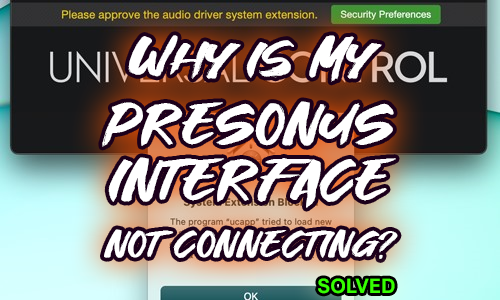
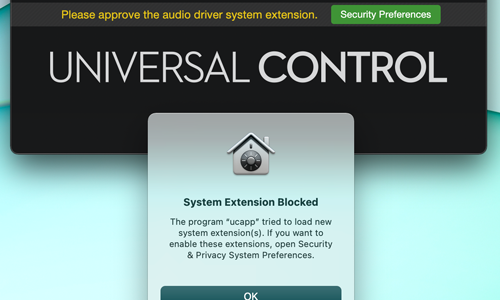
    This issue turned out to be a simple one to resolve. After my client had installed the updates for his PreSonus Universal Control software, he had missed the 30-minute window to ‘Allow’ the OSX driver extensions to run in OSX’s Security Preferences. 

    PreSonus have published a guide on how to do this on their own website:

    I followed the instructions from PreSonus’ site and removed and reinstalled the driver. After installation, I went straight to the security preferences and allowed the system extension.

    Universal Control – audio driver system extension

    For the remainder of the session, I spent time with Chris making sure the rest of his Logic system was working properly. We checked over his plug-ins to make sure everything was loading correctly and I gave him some advice about which version of Kontakt was the right one to use with his version of Logic Pro.

    Categories: , , ,

    No automated tickets, no waiting queues — just one-to-one help from an experienced music technology specialist. I’ll connect to your system remotely, identify the issue, and guide you through the fix.

    Recent problems solved for real clients.

    Optimising Logic Pro CPU Usage for Large Orchestral Mixes

    Client’s Question

    Why does Logic Pro keep crashing when I add plugins to my tracks?

    Session Result

    CPU load drastically reduced; mix workflow stabilised via bus routing.

    Read Full Case Study Report: PreSonus Audio Interface Not Connecting to Logic Pro: How to Fix Blocked Drivers in macOS Security
    Preparing for a Studio Hardware Installation

    Client’s Question

    What cables do I need to connect my hardware synths to my mixer?

    Session Result

    Equipment audited, cable inventory confirmed, site visit planned.

    Read Full Case Study Report: PreSonus Audio Interface Not Connecting to Logic Pro: How to Fix Blocked Drivers in macOS Security
    Mono Microphone Only in Left Speaker Fix in Logic Pro
    Client’s Question

    Why is my mono mic input only coming out of the left speaker in Logic Pro?

    Session Result

    Mono input successfully centred by changing Logic Pro track format from Stereo to Mono.

    Read Full Case Study Report: PreSonus Audio Interface Not Connecting to Logic Pro: How to Fix Blocked Drivers in macOS Security
    Managing Native Instruments Komplete Libraries in Kontakt

    Client’s Question

    How do I hide unwanted libraries in the Kontakt side pane?

    Session Result

    Unused libraries hidden, visual clutter removed.

    Read Full Case Study Report: PreSonus Audio Interface Not Connecting to Logic Pro: How to Fix Blocked Drivers in macOS Security
  • Resolving Digital Distortion: Sample Rate Mismatch Fixed with Audient iD24 and Logic Pro

    Resolving Digital Distortion: Sample Rate Mismatch Fixed with Audient iD24 and Logic Pro

    Hello Paul. I am running Logic on a 12-month-old, desktop Mac. Recently, I replaced my old interface (Behringer FCA 1616) with an Audient ID24 to work in conjunction with my Audient ASP800 (which was previously working fine with the Behringer). I can record, but the audio distorts. Can you help? Paul S

    I received the above message and Paul S and I arranged a time to connect. Once we were speaking on the phone and Paul S showed me the problem on AnyDesk it didn’t take long to work out where things were going wrong.

    Paul S’ recording setup was:

    • Mic
    • Audient ASP800 Mic Preamps
    • Audient ID24 Audio Interface
    • Mac
    • Logic Pro

    He needed to set a sample rate of either 44,100hz or 48,000hz and use the same sample rate throughout the chain. If he didn’t, he would either get sample rate error messages or digital distortion and glitches in his audio recordings.

    Paul S and I discussed the pros/cons of different sample rate options and he decided that 44.1 would suit him best as that was how he had been recording the majority of his projects up to now.

    We set the sample rate in all the devices and then made a few test recordings to check that audio was now recording correctly. We made some changes to his Logic template to confirm that new projects would be recorded at 44.1.

    For the remainder of the hour’s session, I showed Paul S some things he might find helpful to get the best out of his setup.

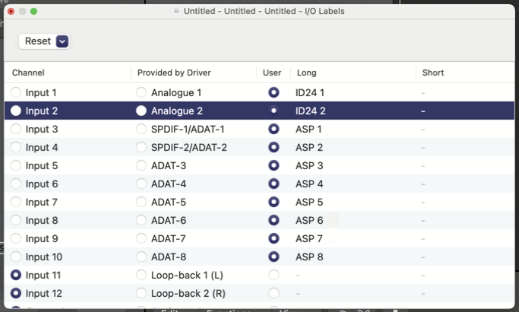
    I showed Paul S how to use the I/O labels feature in Logic to set the display names of his Logic Pro inputs to match the channels of his ASP800.

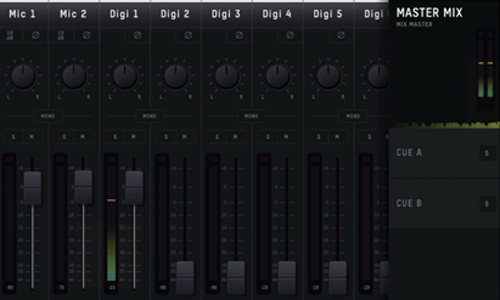
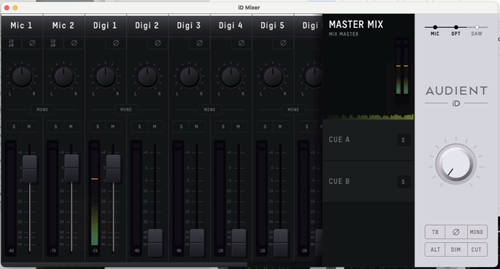
    I showed Paul S how the Audient OSX mixer software allowed him to directly monitor his audio inputs. This can be a useful feature, but it’s important to know how to turn direct monitoring on/off to avoid doubling the sound when recording in Logic Pro.

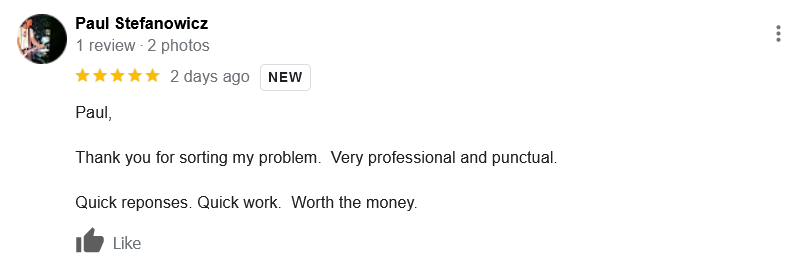
    At the end of the hour, Paul S kindly took the time to write me a Google review.

    Paul S also sent me his Spotify artist link by email and I’ve been enjoying some of his tracks while writing this article. Sharing here:

    Categories: , , ,

    No automated tickets, no waiting queues — just one-to-one help from an experienced music technology specialist. I’ll connect to your system remotely, identify the issue, and guide you through the fix.

    Recent problems solved for real clients.

    Optimising Logic Pro CPU Usage for Large Orchestral Mixes

    Client’s Question

    Why does Logic Pro keep crashing when I add plugins to my tracks?

    Session Result

    CPU load drastically reduced; mix workflow stabilised via bus routing.

    Read Full Case Study Report: Resolving Digital Distortion: Sample Rate Mismatch Fixed with Audient iD24 and Logic Pro
    Preparing for a Studio Hardware Installation

    Client’s Question

    What cables do I need to connect my hardware synths to my mixer?

    Session Result

    Equipment audited, cable inventory confirmed, site visit planned.

    Read Full Case Study Report: Resolving Digital Distortion: Sample Rate Mismatch Fixed with Audient iD24 and Logic Pro
    Mono Microphone Only in Left Speaker Fix in Logic Pro
    Client’s Question

    Why is my mono mic input only coming out of the left speaker in Logic Pro?

    Session Result

    Mono input successfully centred by changing Logic Pro track format from Stereo to Mono.

    Read Full Case Study Report: Resolving Digital Distortion: Sample Rate Mismatch Fixed with Audient iD24 and Logic Pro
    Managing Native Instruments Komplete Libraries in Kontakt

    Client’s Question

    How do I hide unwanted libraries in the Kontakt side pane?

    Session Result

    Unused libraries hidden, visual clutter removed.

    Read Full Case Study Report: Resolving Digital Distortion: Sample Rate Mismatch Fixed with Audient iD24 and Logic Pro
  • IK Multimedia AXE I/O Audio Interface Not Working with Logic Pro X – Solved

    Connected remotely with a client to help him resolve an issue with his AXE I/O interface. Despite the interface being correctly selected as the output device in Logic Pro, he couldn’t hear any audio coming out of it.

    I went through the basic steps and confirmed everything was as it should be.

    • The Logic Project had an audio file playing, it was routed to the stereo output and showing movement in the channel displays.
    • The volume was raised on the AXE I/O and the mute button off.
    • The speakers were connected, turned on and had the volume up.

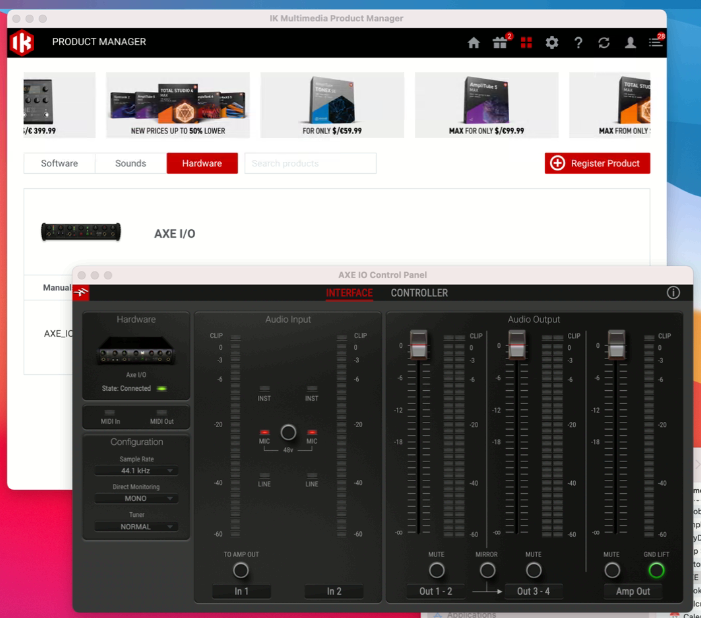
    Still no sound coming out. I thought I would look at the control panel for the AXE I/O and see if there were any settings I could adjust in there, however I couldn’t find any AXE I/O software on his Mac. It was likely that this was the cause of the problem.

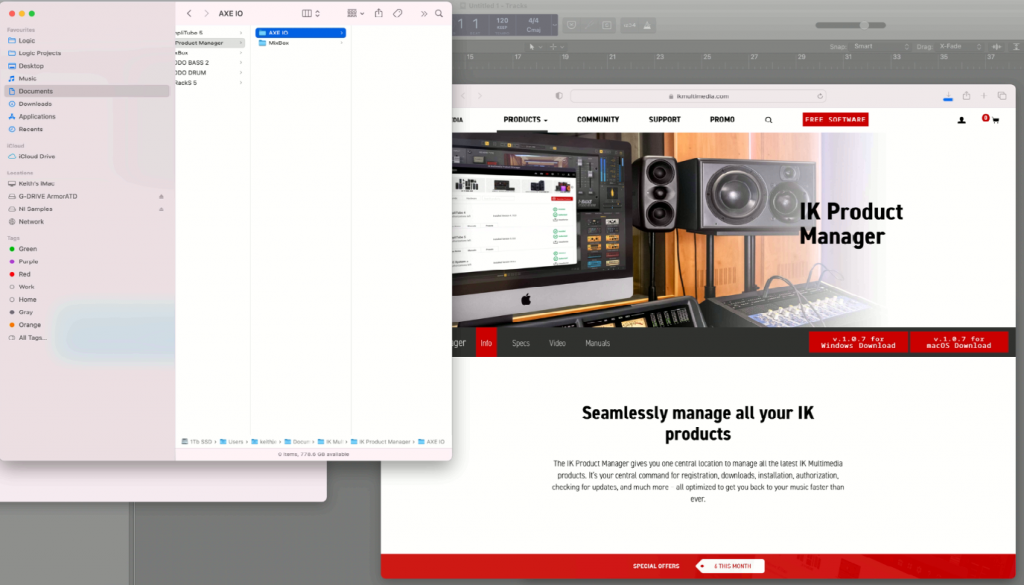
    The IK Multimedia Product Manager was the only way to download this software, but frustratingly this threw up more hurdles.

    The IK Multimedia Product Manager refused to download the AXE I/O installer files. The Product Manager required an update which took ages to download and then the auto-installer failed twice. I had to go onto the IK Multimedia site and manually redownload the latest version of the Product Manager. Once that was installed, I was able to download the hardware drivers for the AXE I/O and install the control panel software.

    Once this software was installed, we reopened Logic Pro and the audio started playing correctly. No need to make any further changes, the driver installation via the IK Multimedia Product Manager had sorted out the problem.

    Categories: , ,

    About the Author

    PAUL ANDREWS

    I’m the owner and lead technician for Audio Support, a small company based in London, UK that connects remotely with clients worldwide to help them with their music technology issues. I’ve run Audio Support since 2005 and in that time I’ve seen and solved thousands of recording studio problems. 

    Outside of Audio Support, I run music workshops at a local school, play bass in a 90s tribute function band and perform modular synth jams with friends on Twitch.


    Get support for similar problems: