
Case Study
Pro-Sound Guitar Lessons on Zoom: Routing Hardware and Backing Tracks
Remote collaboration presents unique technical challenges, especially for musicians who rely on high-quality audio. A client, a dedicated guitar student, was frustrated because while his teacher sounded great on Zoom, his own guitar signal was thin and muffled, relying only on his webcam microphone.
The goal was clear: get his existing guitar rig—pedals and all—running through his MOTU M4 audio interface and into Zoom, perfectly mixed with his voice and a backing track. Achieving this on a Windows PC requires expert setup of a virtual mixer. This is a complex but entirely solvable audio routing problem, exactly what Audio Support specialises in.
The Client’s Challenge
The client wanted to send a professional-quality, live guitar signal—complete with his preferred multi-effects pedal sound—to his teacher over Zoom. His setup was a Windows PC tower and a MOTU M4 audio interface.
The hurdles were twofold:
- Initial connection issues where the M4 was not being recognised by the PC.
- The complex task of routing three separate audio sources (Guitar/Mic, Backing Track, and Zoom Return) into one neat stream for the teacher, while maintaining a clear headphone mix for himself.
Session Setup
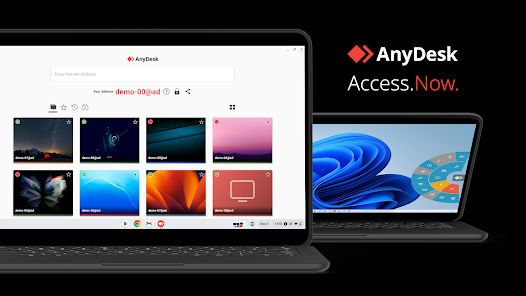
We used AnyDesk for secure remote access to his Windows PC and a voice call for real-time guidance. This allowed me to work directly within the Windows audio settings, the MOTU driver panel, and the virtual mixer software.
Diagnosis
The first step was to establish a rock-solid connection for the MOTU M4.
- Hardware Connection: The physical signal path was correct: Guitar into the multi-effects pedal, and the pedal’s output into Input 1 (or 1/2) of the MOTU M4.
- USB Power Issue: The PC was not detecting the M4 correctly. The interface’s own hardware display was showing that no sample rate or buffer size was selectable. After quickly checking and updating drivers and firmware, the issue was traced to the physical USB port. The front USB sockets on the PC tower were not delivering sufficient, stable power to the M4.
- The Fix: We switched the M4 connection to a rear USB port on the motherboard. This instantly provided the required power, and the MOTU M4 was correctly recognised by Windows, allowing the drivers to install and function. This is a common but easily missed issue on Windows desktop PCs.
Once the M4 was stable, we moved on to routing using the virtual mixing software.
The Fix: Advanced Routing with VoiceMeeter Banana
To mix the guitar, microphone, and backing track for the teacher while controlling the monitoring levels, we needed a virtual mixer: VoiceMeeter Banana.
We installed the software and restarted the PC. The routing plan was set up as follows:
| Audio Source | VoiceMeeter Input | User Monitoring (A1) | Teacher/Zoom Send (B1) |
| Guitar & Mic (via MOTU M4) | Hardware Input 1 (MOTU Input 1/2) | A1 Selected | B1 Selected |
| Backing Track (Spotify/YouTube) | Virtual Input (Aux) | A1 Selected | B1 Selected |
| Zoom Return (Teacher’s Voice) | Virtual Input (Main VAIO) | A1 Selected | B1 NOT Selected |
Crucially, the following adjustments were made:
- Hardware Out (A1): We set the main hardware output (A1) to the MOTU M4’s output device (WDM: MOTU M4 1/2) so the client heard everything through his headphones.
- Mono for Guitar/Mic: On Hardware Input 1, we pressed the Mono button. This ensured the guitar (likely on one channel) and the mic (if on the other) were merged and heard equally in both headphone ears.
- Windows Default Playback: We set the Windows default sound output to Voicemeeter Aux Input so that backing tracks (e.g., Spotify, YouTube) fed into the specific virtual channel strip.
- Zoom Settings: The client’s Zoom microphone input was set to VoiceMeeter Output (B1) to send the perfectly mixed blend of Guitar, Mic, and Backing Track to the teacher.
- Feedback Prevention: The Zoom return (teacher’s voice) was routed only to A1 (client’s headphones) and critically NOT to B1, which would have created an immediate and destructive feedback loop.
We ran a full test recording using a separate DAW (PreSonus Studio One) and then connected over Zoom to confirm the teacher could hear all three elements cleanly, and the client had perfect monitoring, including his own audio (via the M4’s direct monitoring feature) and the Zoom return.
Additional Support
Because the VoiceMeeter setup involves a lot of moving parts, I generated a detailed, step-by-step instruction guide for the client to keep as a permanent reference. This ensures he can confidently operate the system for future lessons.
Client Reference Document: MOTU M4 & VoiceMeeter Zoom Setup
| Component | Setting/Action | Purpose |
| MOTU M4 Connection | Connect to a Rear USB Port on your PC tower. | Solved the power/recognition issue for the interface. |
| MOTU Signal Path | Guitar FX Pedal Output $\rightarrow$ MOTU M4 Input 1 (or 1/2). | Sends your guitar signal into the computer. |
| Install VoiceMeeter | Download and install VoiceMeeter Banana (must reboot PC). | This is your master virtual mixer. |
| VM Hardware Out (A1) | Top right of VoiceMeeter, set A1 to WDM: MOTU M4 1/2. | Your headphones will now hear the mix from VoiceMeeter. |
| VM Hardware Input 1 | Top left, set the input to MOTU M4 Input 1-2. | Brings your live Guitar/Mic signal into the mixer. |
| VM Hardware Input 1 | Press the MONO button on this strip. | Prevents your guitar (or mic) from being split to one ear. |
| VM Aux Input Setup | Set the Windows default sound output (bottom right speaker icon) to VoiceMeeter Aux Input. | All PC audio (Spotify, YouTube) is now routed to the Aux strip. |
| VM Aux Input (Backing Track) | Select A1 and B1 on this strip. | A1 = You hear the backing track. B1 = Teacher hears the backing track. |
| VM Guitar/Mic Strip | Ensure A1 and B1 are selected. | A1 = You hear your guitar/mic. B1 = Teacher hears your guitar/mic. |
| VM Virtual Input (Main VAIO) | This strip controls the level of the Zoom Return (your teacher’s voice). Select A1 only. | A1 = You hear your teacher. DO NOT select B1 to prevent feedback. |
| Zoom Microphone Setting | In Zoom Audio Settings, set Microphone to VoiceMeeter Out (B1). | Sends the mixed Guitar/Mic/Backing Track signal to your teacher. |
| Zoom Speaker Setting | In Zoom Audio Settings, set Speaker to VoiceMeeter Input (VAIO). | Routes the teacher’s voice into the Virtual Input strip for monitoring. |
Reflection
The most important takeaway here is the importance of a holistic diagnosis. We couldn’t have successfully set up the complex software routing until we had solved the simple, underlying hardware problem of USB power. A faulty or underpowered port can make a high-quality interface look broken. Once the hardware was stable, the virtual mixer VoiceMeeter Banana became the perfect tool to combine multiple audio sources and send a high-quality, professional mix over a simple conferencing app.
Closing Thoughts
I help musicians and producers worldwide solve problems like this every day. If you’re struggling with audio routing between your hardware, software, and platforms like Zoom or OBS, I’ll help you find the real cause and get you back to creating.
Let’s Get Your System Running Smoothly.
No automated tickets, no waiting queues — just one-to-one help from an experienced music technology specialist. I’ll connect to your system remotely, identify the issue, and guide you through the fix.
More Case Studies
Recent problems solved for real clients.
Optimising Logic Pro CPU Usage for Large Orchestral Mixes
3 January 2026
Client’s Question
Why does Logic Pro keep crashing when I add plugins to my tracks?
Session Result
CPU load drastically reduced; mix workflow stabilised via bus routing.
Read Full Case Study Report: Pro-Sound Guitar Lessons on Zoom: Routing Hardware and Backing TracksPreparing for a Studio Hardware Installation
14 December 2025

Client’s Question
What cables do I need to connect my hardware synths to my mixer?
Session Result
Equipment audited, cable inventory confirmed, site visit planned.
Read Full Case Study Report: Pro-Sound Guitar Lessons on Zoom: Routing Hardware and Backing TracksMono Microphone Only in Left Speaker Fix in Logic Pro
14 December 2025

Client’s Question
Why is my mono mic input only coming out of the left speaker in Logic Pro?
Session Result
Mono input successfully centred by changing Logic Pro track format from Stereo to Mono.
Read Full Case Study Report: Pro-Sound Guitar Lessons on Zoom: Routing Hardware and Backing TracksManaging Native Instruments Komplete Libraries in Kontakt
12 December 2025

Client’s Question
How do I hide unwanted libraries in the Kontakt side pane?
Session Result
Unused libraries hidden, visual clutter removed.
Read Full Case Study Report: Pro-Sound Guitar Lessons on Zoom: Routing Hardware and Backing Tracks