Hi Paul. I’m having issues configuring OBS and Xbox audio. I would like to stream on Twitch while communicating with chat and playing Xbox while listening to music. I have in-game chat/music/OBS alerts and picture from the capture card all working. I just can’t get the capture card and headset/mic to cooperate at the same time. Can you help me please? – J
The hardware I’m using is:
- Hp Elite Mini 600 Desktop PC
- Elgato HD60X capture card
- Turtle Stealth 700 Gen 3 cross platform headset
- Xbox one
I received the above message from a new client via my Fiverr profile and we arranged a remote support session for later that week.
Once my client and I were connected we had to work through a number of problems to get everything working properly. These were the issues I helped my client resolve:
Turtle Stealth 700 Headset connecting via both Bluetooth and USB receiver
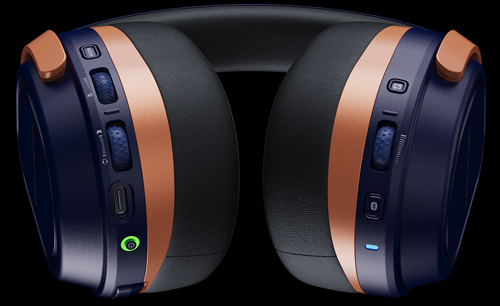
This model of headset has multiple ways it can connect to a user’s PC/Xbox. Inside the product’s packaging are a pair of USB receivers. One is to be connected to the user’s Xbox and one to the user’s PC. The user can then send audio to either receiver using the CrossPlay button on the side of the headset. This system allows the user to quickly switch between listening to their Xbox or PC audio.
The headset can also communicate to the PC/Xbox via traditional Bluetooth connectivity. This method does not allow one-button switching between devices.
When my client and I investigated his Windows Audio Settings, we found the headset was connected by both USB receiver and traditional Bluetooth. We disabled the traditional Bluetooth connection and changed settings so Windows would only connect via the USB receiver in the future.
No signal from Turtle Stealth 700 microphone in OBS
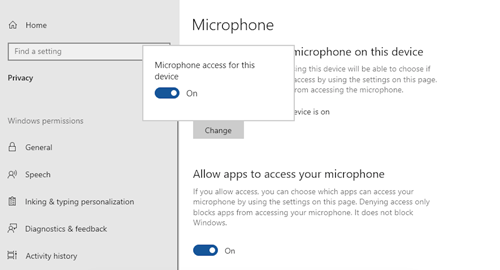
This turned out to be a Privacy and Security setting in Windows. My client wasn’t aware that he had set Windows to block access from all applications to use the microphone. I showed my client how to make the changes to allow OBS to use the microphone.
From the Windows support page:
To use your microphone with apps on Windows, you’ll need to turn on some permissions in Privacy & security settings. Here’s how:
- Select Start > Settings > Privacy & security. Then look for Microphone under App permissions and make sure Microphone access is turned on.
- Then, allow apps access to your microphone. In Microphone settings, go to Let apps access your microphone and make sure it’s turned On.
- Once you’ve allowed microphone access to your apps, you can change the settings for each app. In Microphone settings, go to Choose which apps can access your microphone, and turn on apps you want to use with it. For desktop apps, make sure that Let desktop apps access your microphone is turned on.
Routing in-game Party Chat to OBS
My client and I had solved the first audio problem. He could now record and monitor audio from his headset into OBS.
We then moved onto another problem. My client wanted to be able to hear and speak to his in-game friends in Party Chat and have that audio streamed to Twitch via OBS.
The solution to this was in the Xbox’s settings.
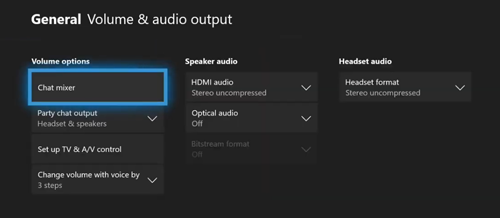
We needed to set Party chat output to Headset and Speakers.
Additional Support
My client and I ran a couple of test streams to make sure everything now worked as expected. We had a video issue related to Twitch’s Enhanced Broadcasting with Multiple Encodes feature not being compatible with my client’s GPU. I showed my client that we could disable enhanced broadcasting option in OBS to resolve the problem.
Conclusion
At the end of our remote session my client was pleased with what we had achieved:
- His headset could now send audio to either OBS or Xbox and he could switch between them using the CrossPlay button on the side of the headset
- His in-game audio was now correctly streaming to Twitch via OBS
After the session my client was kind enough to leave me this nice review on Fiverr:
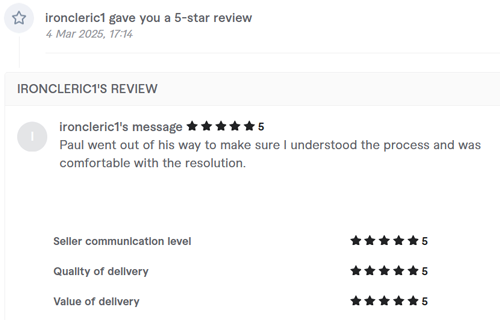
Five Stars – Paul went out of his way to make sure I understood the process and was comfortable with the resolution.
Recent Reviews
Let’s Get Your System Running Smoothly.
No automated tickets, no waiting queues — just one-to-one help from an experienced music technology specialist. I’ll connect to your system remotely, identify the issue, and guide you through the fix.
More Case Studies
Recent problems solved for real clients.
Preparing for a Studio Hardware Installation
14 December 2025

Client’s Question
What cables do I need to connect my hardware synths to my mixer?
Session Result
Equipment audited, cable inventory confirmed, site visit planned.
Read Full Case Study Report: Preparing for a Studio Hardware InstallationMono Microphone Only in Left Speaker Fix in Logic Pro
14 December 2025

Client’s Question
Why is my mono mic input only coming out of the left speaker in Logic Pro?
Session Result
Mono input successfully centred by changing Logic Pro track format from Stereo to Mono.
Read Full Case Study Report: Mono Microphone Only in Left Speaker Fix in Logic ProManaging Native Instruments Komplete Libraries in Kontakt
12 December 2025

Client’s Question
How do I hide unwanted libraries in the Kontakt side pane?
Session Result
Unused libraries hidden, visual clutter removed.
Read Full Case Study Report: Managing Native Instruments Komplete Libraries in KontaktUsing Professional Studio Microphones with WhatsApp
12 December 2025

Client’s Question
How do I use my Focusrite interface and XLR mic with WhatsApp?
Session Result
WhatsApp Desktop app configured to route audio through Focusrite interface.
Read Full Case Study Report: Using Professional Studio Microphones with WhatsApp